Generating the SSH RSA keys
To access your account for the first time, a public RSA SSH key must be sent to the cluster administrator.
Password-based access is permanently disabled!
The public key (example filename: id_rsa.pub) is always generated together with the private key (example filename: id_rsa)
The private key must be protected and must not be shared with anyone.
Below are instructions for generating such a key pair on Linux and Windows.
GNU/Linux
One can use the ssh-keygen command to generate a key pair on a GNU/Linux distribution.
To do so, you need:
* open a terminal emulator
* type in ssh-keygen and press Enter
* you will be asked to type in a password to protect you private key (Enter passphrase). This is an optional step, but it is recommended.
Here you can see example output:
> ssh-keygen
Generating public/private RSA key pair.
Enter file in which to save the key (/home/user/.ssh/id_rsa):
Enter passphrase (empty for no passphrase):
Enter same passphrase again:
Your identification has been saved in /home/user/.ssh/id_rsa.
Your public key has been saved in /home/user/.ssh/id_rsa.pub.
The key fingerprint is:
43:c5:5b:5f:b1:f1:50:43:ad:20:a6:92:6a:1f:9a:3a
- Afterward, you should find your keys in
~/.sshdirectory:id_rsa– this is your private key; do not share it with anybodyid_rsa.pub– this is your public key, which you should send to the cluster administrator (admin.coimk@ujk.edu.pl)
Windows (10) with puttygen
- Install the latest full version of PuTTY that is appropriate for your CPU architecture. At the time of writing, the manual is version 0.75.
- In the directory where PuTTY is installed (usually: C:\Program Files\PuTTY), launch the program puttygen.exe.
- Make sure the key type is RSA.
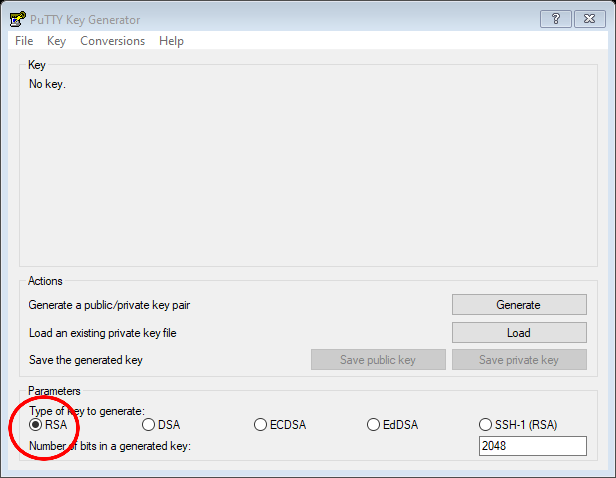
- Click the button
Generate


- When generating the key, move the mouse to make the process random.
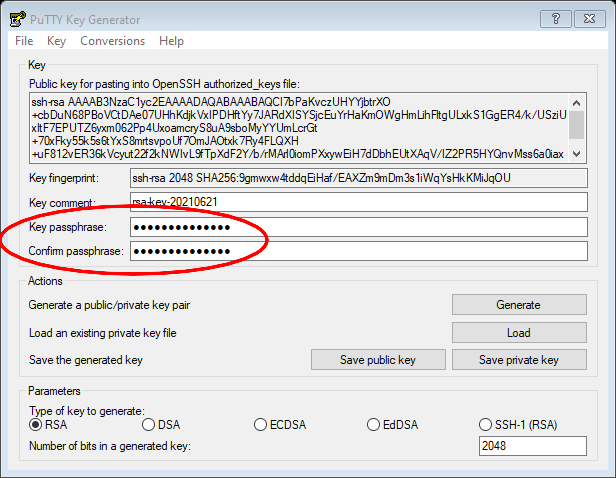
- After generating the keys, additionally secure the keys by entering a password in the field
Key passphrase; repeat the same password in the fieldConfirm passphrase.
- Write down the keys (public and private) in a safe place.
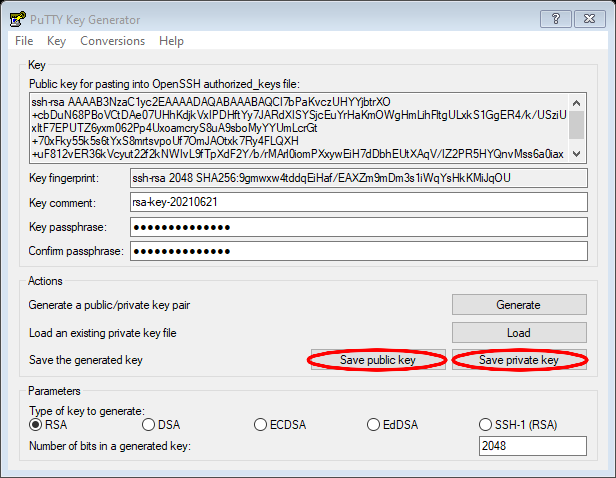
- Send the public key to the system administrator (admin.coimk@ujk.edu.pl).
- Keep the private key only for yourself.
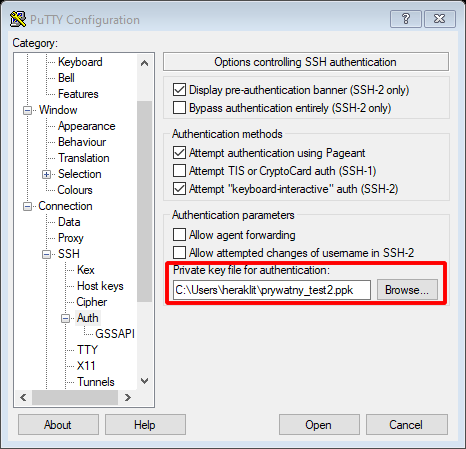
- When connecting to the access server using the putty program, indicate to putty the location of the private key using the
Private key file for authenticationfield in the SSH -> Auth tab.